
Learn the few simple steps to rotate your assets. While our guide looks like a lot of work, it will become an easy routine that takes you, depending on your chosen portfolio, between 5 minutes a month to 15 minutes a day.
Check Status & Asset Allocation
Before starting the rebalancing procedure, please check the following:
a) The account status timestamp gives you the date and time we last updated your portfolio. For convenience, the time is shown in your local time zone. The last update should be just a few hours old unless it's the weekend. If it is older than that, the site might not have been updated yet.
The last scheduled rebalancing timestamp shows when this portfolio last adjusted its holdings. This date should be either today or yesterday, depending on the time of the day. If it is older, there is likely nothing to do for this portfolio today.

b) The approximated account value should match the net liquidation value of your brokerage account. We are trying our best to reflect the market's ups and downs in this number. However, you will still need to adjust it once in a while. You can do so after clicking the little pencil icon.
It is a good idea to set an account value slightly lower than the net liquidation value shown by your brokerage. Doing so will help accommodate fees and commissions and ensure your order size is valid, even when the market prices change overnight.
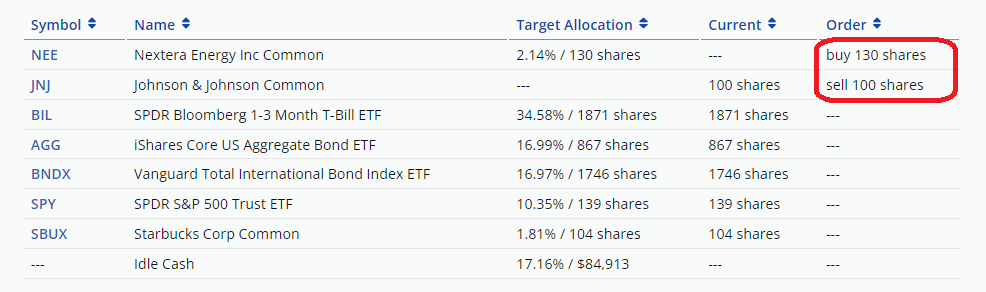
The asset allocation table summarizes the holdings in your account. The example table above shows each asset's target allocation, current holdings, and order size. The target allocation is given in percent and shares to hold. This way, you will have the information you need in case your rebalancing tool calculates the number of shares for you. The current allocation is memorized from the last time you rebalanced the account. It is important to remember that TuringTrader.com does not have access to your brokerage account; therefore, this number might not be perfectly accurate. The order column calculates the difference between the target and current columns. If the target number of shares is higher than the current holdings, a buy order is needed; if it is lower, a sell order will be shown.
Placing Your Orders
This is also a multi-step process:
- liquidate any assets held but not shown in the table
- place the orders as displayed in the table
- check for correctness
First, we recommend comparing your asset allocation table to the assets held in your account. Then, liquidate any holdings in your account that are not listed in the table with the target allocation. This step is typically only required for portfolios of individual stocks, but it is always better to verify.
Next, enter your orders one by one. Unless otherwise noted, TuringTrader.com uses market orders expected to fill at the next open. Make sure to double-check your orders for correctness.
We recommend not being too literal when placing your orders to avoid excessive commissions. Many brokerages charge a minimum fee, e.g., $1, per trade. Therefore, your change to your portfolio allocation should be meaningful enough to justify those $1 in commissions. Assuming you might earn 1% on a short-term trade, this profit must be significantly larger than the commission paid. As a rule of thumb, you should probably ignore orders that reallocate less than $500 of capital.
Some account types do not allow overlapping trades, with sell orders for one instrument submitted simultaneously with buy orders for another. This is why we recommend using margin accounts for trading, even though our portfolios don't use margin. If you cannot place overlapping orders, we recommend placing the sell orders while the markets are closed and the buy orders right after the markets open. Trading a few minutes after the markets open will typically not make a noticeable difference. However, the later you put in these orders, the larger the deviation between your actual results and our backtested results may become.
Finish Rebalancing
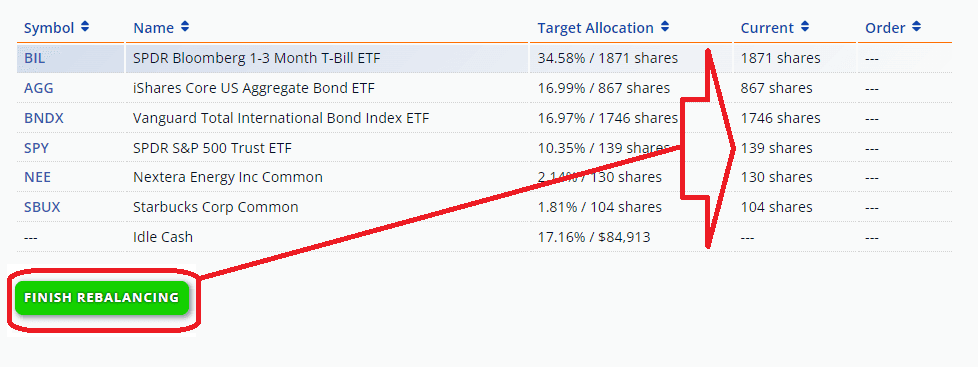
After placing your orders for this account, click the Finish Rebalancing button. This step marks your account holdings as current. In particular, this copies the share numbers from the target allocation to the current column, clearing out the order column. On the dashboard, the action button for this account will now read Review instead of Rebalance. Also, this turns off the rebalancing notifications until the next time the asset allocation changes.
Checking The Fills
Please check your order fills at your earliest convenience. Most of the time, things should be just fine. However, occasionally, an asset's price went up significantly since we calculated the order size. In this case, your account's cash balance will be negative. Don't let it sit like that until the next rebalance. Instead, sell a few shares to cover the price increase until your account's cash balance is positive.
Keep The Rebalancing Schedule
If you follow these rules, your results from actual trading should closely track our backtested results. For more details, please read our article comparing live trading with backtests.
However, successful investing requires more than just following the routine of placing orders. It is essential to make some room in your calendar to keep the rebalancing schedule. It is vital to stay the course, even when portfolio performance falls short of expectations. Check out our habits for success.